This guide helps you read a VirusTotal report. The final decision on whether to run a file is yours. When in doubt, ask someone who does this professionally.
Table of Contents
- Check the Scan Date
- Check the Details Tab
- Check the Submitted Names
- If It's a Pirated Software
- Check the Relations Tab
- Check the Contacted IP Addresses/URLs
- Check the Behavior Tab
- Check the Detections Tab
- Check the Highlighted Actions
- Check the File Age
- Check If It Has Multiple Similar Detections
- Consider the Community Tab
- Conclusion
- Credits
When conducting a VirusTotal (VT) scan, follow these steps to thoroughly analyze the results:
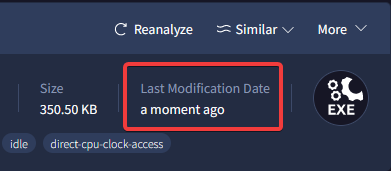
- Ensure that the scan date is recent. If not, click on the 'Reanalyze' button and scan to detect new threats or remove old false positives.
(Go to the VirusTotal site → Upload your file or search the file hash/url → Look at the top-right side of the screen.)
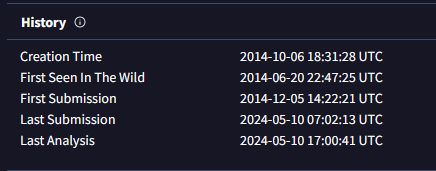
• Creation Time, First Seen In The Wild, and First Submission:
◦ Creation Time may be unreliable if obviously fake (e.g., set in the future).
◦ Compare First Seen In The Wild and First Submission dates with the product release date to identify recycled malware.
(Go to the VirusTotal site → Upload your file or search the file hash/url → Click on the 'Details' tab.)
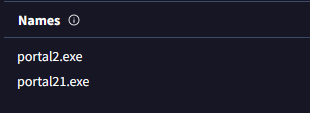
• Ignore names resembling hashes or generic terms like 'sample1.exe'.
• Multiple names for unrelated products suggest potential malware.
(Go to the VirusTotal site → Upload your file or search the file hash/url → Click on the 'Details' tab → Scroll down until you see the 'Names' section.)
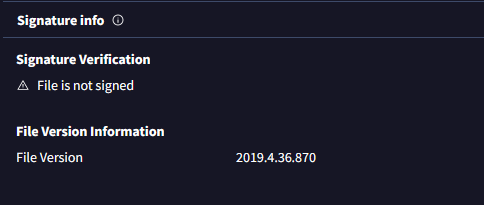
• For pirated software, signatures won't be helpful. Cracks and patched files won't have valid signatures, so that alone isn't suspicious. But if a file that should be signed (like an untouched installer) has an invalid or missing signature, treat it as a red flag.
(Go to the VirusTotal site → Upload your file or search the file hash/url → Click on the 'Details' tab → Scroll down until you see the 'Signature info' section.)
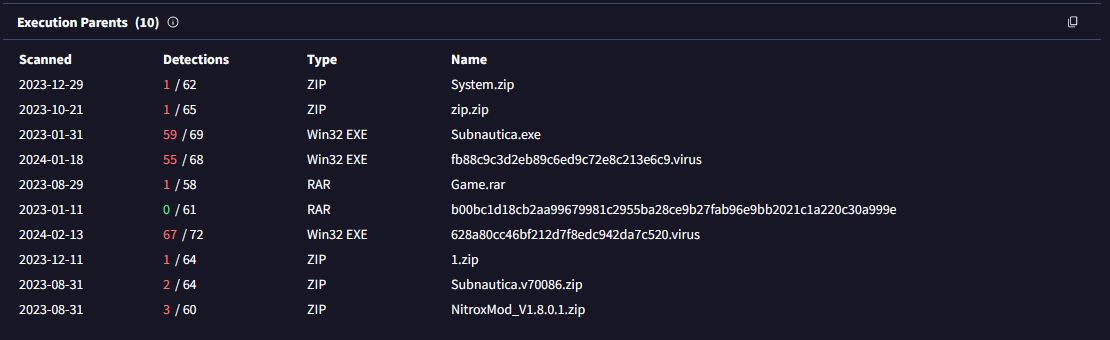
• Execution Parents/Resource Parents:
◦ Focus on installers or archives that contained, dropped, or downloaded the file. Ignore if scanning an installer that wasn't extracted from another file.
(Go to the VirusTotal site → Upload your file or search the file hash/url → Click on the 'Relations' tab → Scroll down until you see the 'Execution Parents' section.)
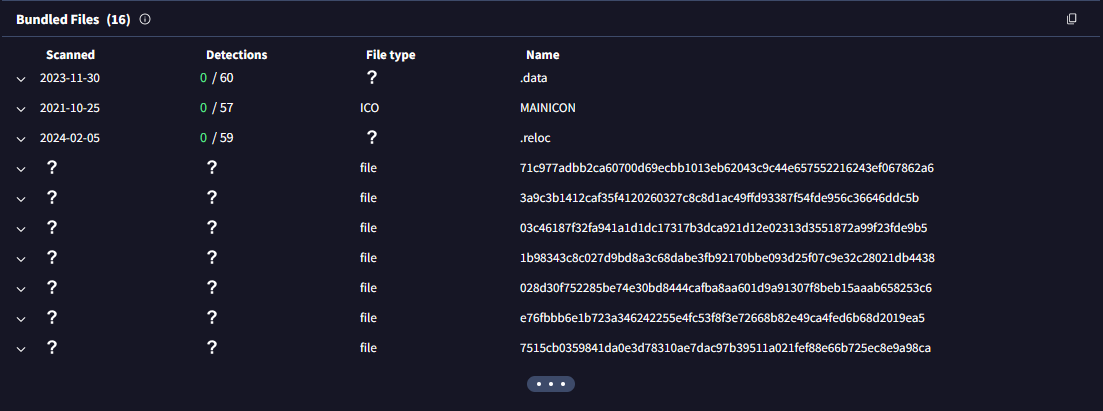
• Dropped Files/Bundled Files:
◦ Examine files extracted from the scanned file, particularly useful when scanning archive files.
(Go to the VirusTotal site → Upload your file or search the file hash/url → Click on the 'Relations' tab → Scroll down until you see the 'Bundled Files' section → Scroll down a bit more until you see the 'Dropped Files' section.)
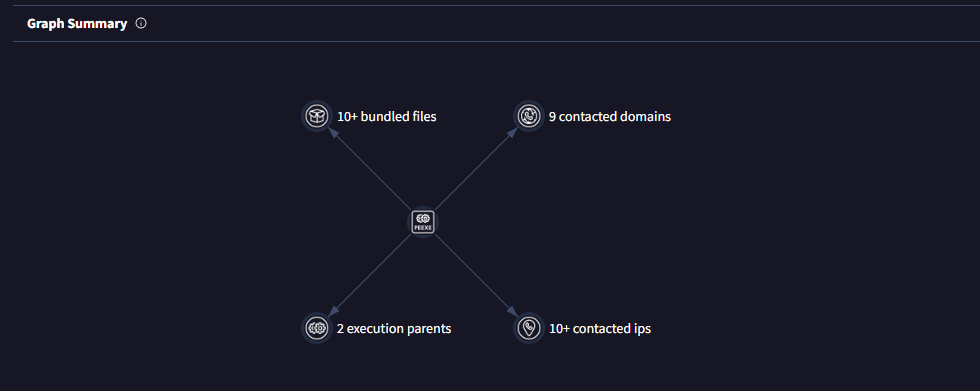
• Graph Summary
◦ Take a quick glance at everything once more.
(Go to the VirusTotal site → Upload your file or search the file hash/url → Click on the 'Relations' tab → Scroll down until you see the 'Graph Summary' section.)
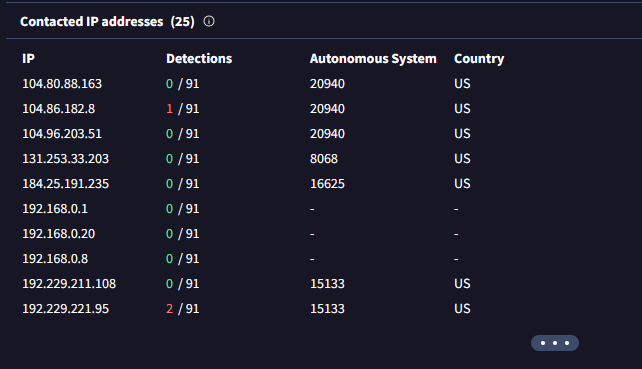
• Beware of overwhelming malicious results, but also consider false positives. (e.g. drive.google.com is currently flagged as a phishing site by one of the AVs)
• Suspicion arises if a file meant to be benign (e.g., a keygen or patcher) makes unexpected requests.
(Go to the VirusTotal site → Upload your file or search the file hash/url → Click on the 'Relations' tab → Scroll down until you see the 'Contacted IP addresses' section.)
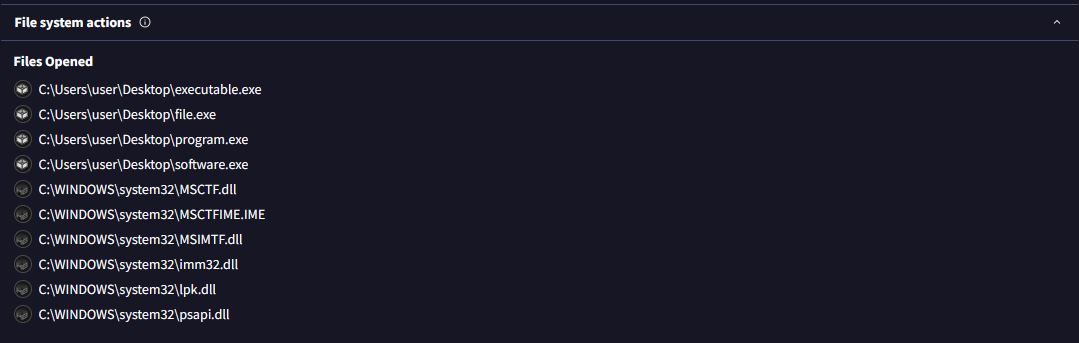
• Opening and reading files, writing/deleting temp files, and expected installer activities are generally benign.
• Suspicion arises if the file exhibits unusual behavior or accesses unnecessary areas.
(Go to the VirusTotal site → Upload your file or search the file hash/url → Click on the 'Behavior' tab → Scroll down and notice the info presented to you.)
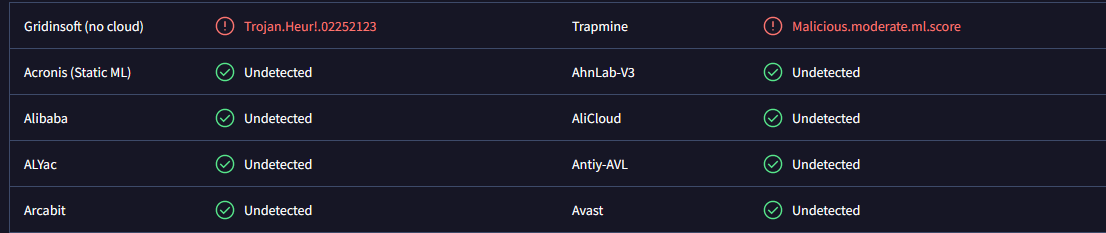
• Generic/gen/susgen detections (like W32.Trojan.Gen) or AI/ML labels may indicate potential malware that doesn't match known signatures.
• Common detections for cracks, patches, etc., include riskware, hacktool, and not-a-virus (last one is specific to Kaspersky).
(Go to the VirusTotal site → Upload your file or search the file hash/url → Click on the 'Detection' tab → Scroll down and notice the info presented to you.)
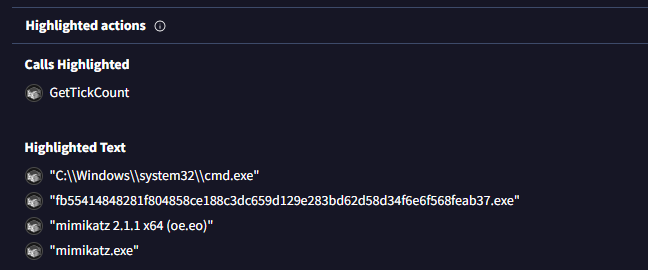
• Alarming statements like "all your files are belong to us" are rare, but if you see one, take immediate action.
(Go to the VirusTotal site → Upload your file or search the file hash/url → Click on the 'Behavior' tab → Scroll down until you see the 'Highlighted actions' tab.)
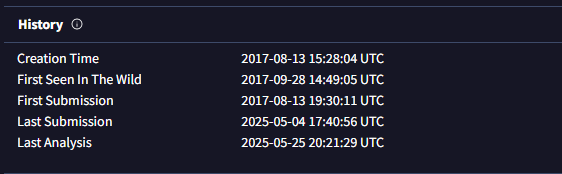
• New files may lack accurate detections, while older files should have more reliable results.
• A file's age can provide context; newer files warrant closer scrutiny.
(Go to the VirusTotal site → Upload your file or search the file hash/url → Click on the 'Details' tab → Scroll down until you see the 'History' tab.)
• If numerous specific detections align, it indicates higher risk.
(Go to the VirusTotal site → Upload your file or search the file hash/url → Look at the 'Popular threat label' section → Look at the 'Threat categories' section → Look at the 'Family labels' section.)

• While often cluttered, occasionally valuable insights or warnings are found.
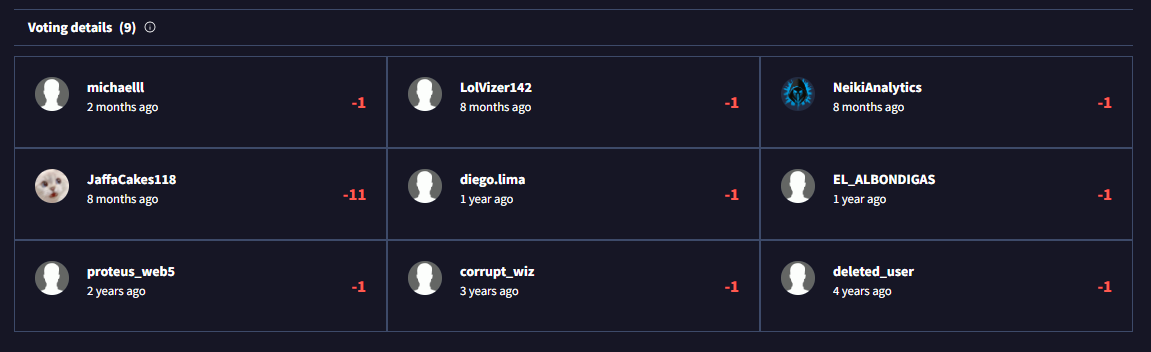
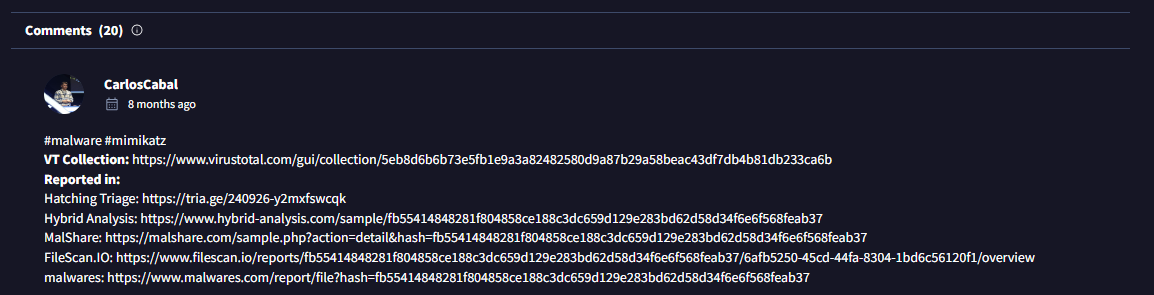
(Go to the VirusTotal site → Upload your file or search the file hash/url → Click on the 'Community' tab.)
Some scans won't give you a clear answer. If a file shows generic detections or anything you can't explain, don't run it.
Old owner - ilike2burnthing
New / Current owner - Clara

(With <3 )
If you have any feedback you want to give me, please fill in a form here.